
Less searching, more getting out
Keep Little North Explorers handy
Save the site to your home screen or app launcher and it’ll be ready when you’re wondering what to do with the bairns. This is optional — you can keep using the website as usual. There’s no app-store download and no account to set up.
iPhone and iPad
Using Safari
Get quick access to Little North Explorers from your Home Screen, just like an app.
- 1
Open Safari’s menu
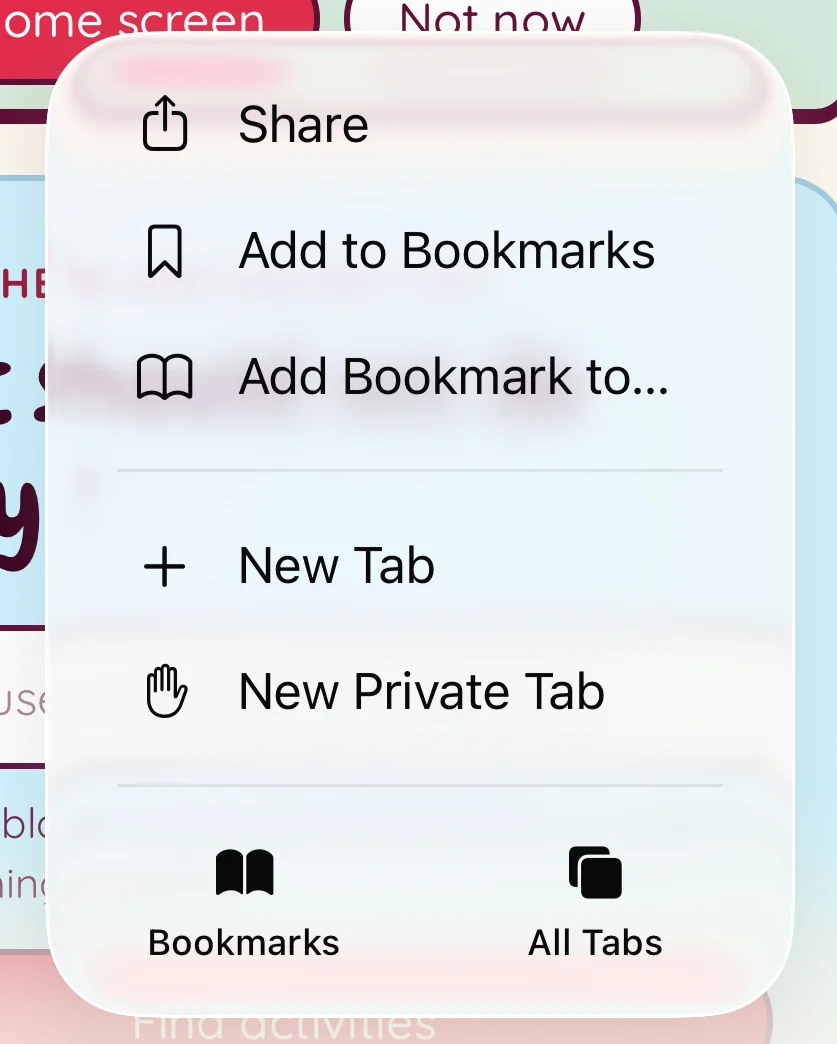
Open the page menu beside the address bar, then choose Share. In some Safari layouts, you can tap the Share button directly. The pictures show one layout; yours may look different.

- 2
Tap Share
Choose Share from the menu.
- 3
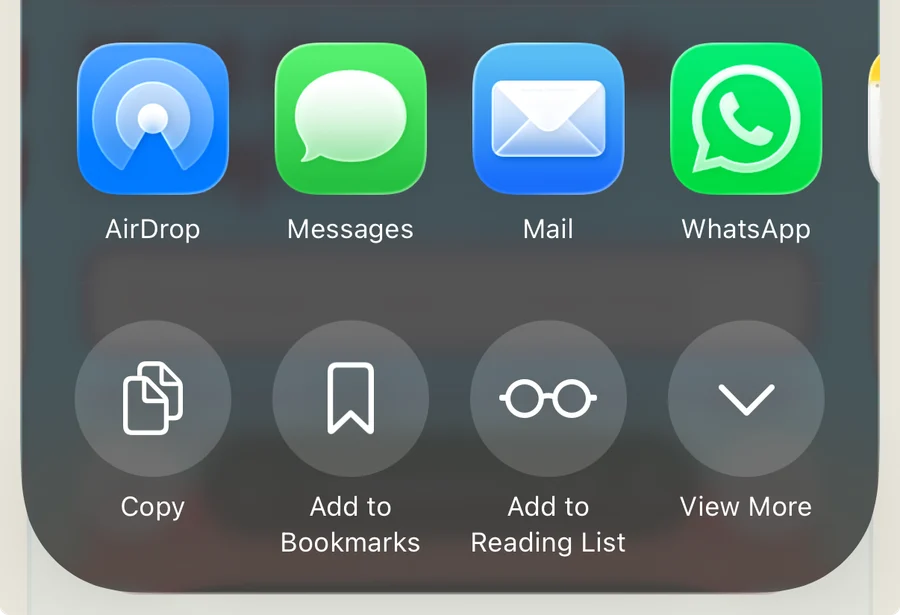
Find ‘Add to Home Screen’
Scroll down the Share options. Depending on your version, tap View More or use Edit Actions if Add to Home Screen is missing.
- 4
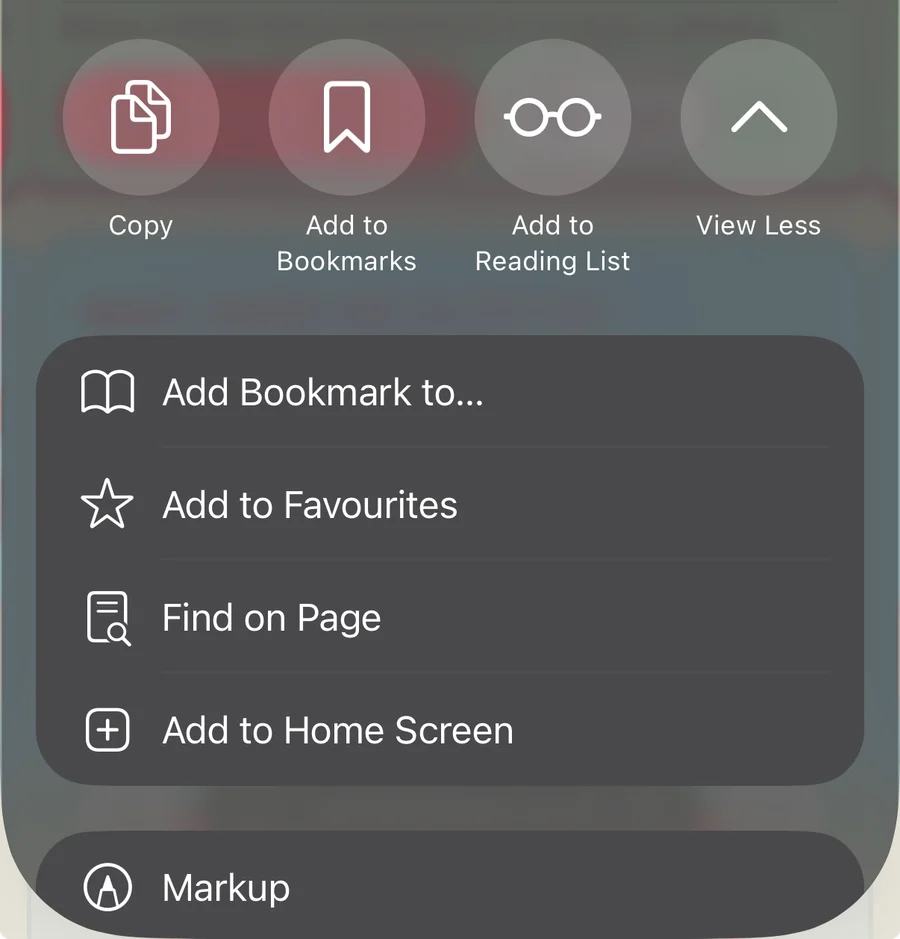
Tap ‘Add to Home Screen’
Scroll down and choose Add to Home Screen.
- 5
Tap ‘Add’
Safari will show a preview. If Open as Web App is offered, turn it on to open us like an app. Tap Add and Little North Explorers will appear on your Home Screen.
Android phone or tablet
Using Chrome
- 1Open Little North Explorers in Chrome.
- 2Tap the three-dot menu beside the address bar.
- 3Choose Install and create shortcut or Add to Home screen.
- 4Follow the on-screen instructions.
Mac, Windows or Chromebook
Using Chrome
- 1Open Little North Explorers in Chrome.
- 2Open the three-dot menu in the top-right corner.
- 3Choose Cast, save and share, then Install page as app.
- 4Follow the on-screen instructions and look for us in your app launcher or Dock.
A couple of handy things to know
- It’s still the same website, so it needs an internet connection for the latest activities and events.
- You can remove it from your home screen or app launcher whenever you like.
- No app-store account or extra Little North Explorers account is needed.